10.0.0.1 Admin Router Login – Piso WiFi Pause Time
10.0.0.1 is a private IP address that controls the router panel. It’s used in the local network and helps to manage the router settings and Piso WiFi. You can secure your wifi connection, analyze the connected devices, and configure network settings. Users use this IP address to access different modems or routers to manage their small business or Piso network. Create a guest network and manage bandwidth for fair internet access. You can easily log in to the panel and enhance security by reading this article.
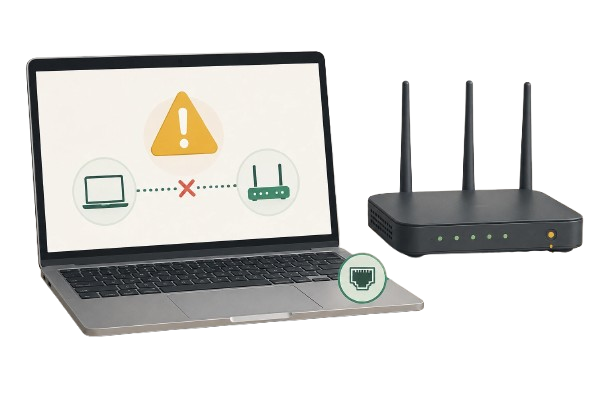
How to log in to the 10.0.0.1 Admin Router?
Users can easily log in to this admin router by following these steps:
Step 1: Connect your device to the router
Users can easily move to their router admin panel by following these steps:
First of all, connect your router to your device. Now you have two options; the simplest is to connect to your WiFi network by entering the WiFi password. Now, take an Ethernet cable and connect one end to the computer and the other end to the router LAN.
Important:
Understand that your internet connection and WiFi network are two separate things, and you are not required to have an internet connection to access the 10.0.0.1 IP address. Even with no internet, your router will create a local network.
Step 2: Use a web browser
Use any browser like Chrome, Safari, Edge, or Firefox. Use an updated browser, as older versions may not work properly.
Tip:
Use an updated browser to access your router admin page. Enter the IP address in the browser’s address bar.
Step 3: Enter your IP address
When you open a web browser, check the IP address carefully to avoid any mistakes. Click on the address bar at the top and type the address correctly as:
**http://10.0.0.1**
Avoid entering the “http://” prefix incorrectly or adding www before the IP address, and never enter it directly in the search bar. Use the browser’s address bar.
Step 4: Type the admin credentials
When you enter the IP address, the login page appears on your screen. Fields for username and password are displayed, and most users enter admin as the username.
Three important places to check:
- Check the back of your router or the sticker on the bottom.
- Check the router box it came in.
- Check your internet provider documentation.
Warning:
If you have changed or forgotten the password, a factory reset may be necessary. It changes your custom settings, so it should be used only as a last resort.
Step 5: Press the login button
After that, press the login button and access the dashboard.
How to manage 10.0.0.0.1 router settings?
It’s a common setting on every router that lets you easily manage and access your router properly.
Change the Wifi name
When people search for network and name appears are wifi name that usually appears as TL-123. You have to change the wifi name by following the tips:
1. Choose a name that cannot reveal your identity but still resembles your network.
2. Choose “Office WiFi” or “Working WiFi”.
3. Never choose “154 Street Main” or “Jones Network”.
4. Avoid special characters or emojis that may cause issues in the future.
Change wifi password
Now, you have to change your wifi password so that people using your network without permission can stop. Create a strong password with 12 characters, including uppercase, lowercase, and special characters. Never use your name or personal information as a password.
Secure the new password because all devices connected to your wifi will disconnect, and they will require the new password. Check all the connected devices and remove the extra devices.
Check connected devices
Move to the admin panel and check the connected devices immediately. You must know the device names that are connected to your network.
Block unknown devices
If you find any unknown device, then block it because most routers provide immediately option to block it. Always keep in mind that Unknown devices are a red flag for your network.
Make a guest network
If you have regular visitors and guests, then create a guest network. By this, they can easily connect their device to your network without accessing your network or device information. It’s an easy and reliable step.
Firmware update
Firmware updates bring enhanced security and advanced technical performance. Actually, firmware is your router software, so go to the settings and check for firmware updates. Install the update and never interrupt the installation process because it can damage your router.
Manage bandwidth
If you want to get fair access for every user, then manage bandwidth. If one user is streaming 4K, it can disrupt other connected devices.
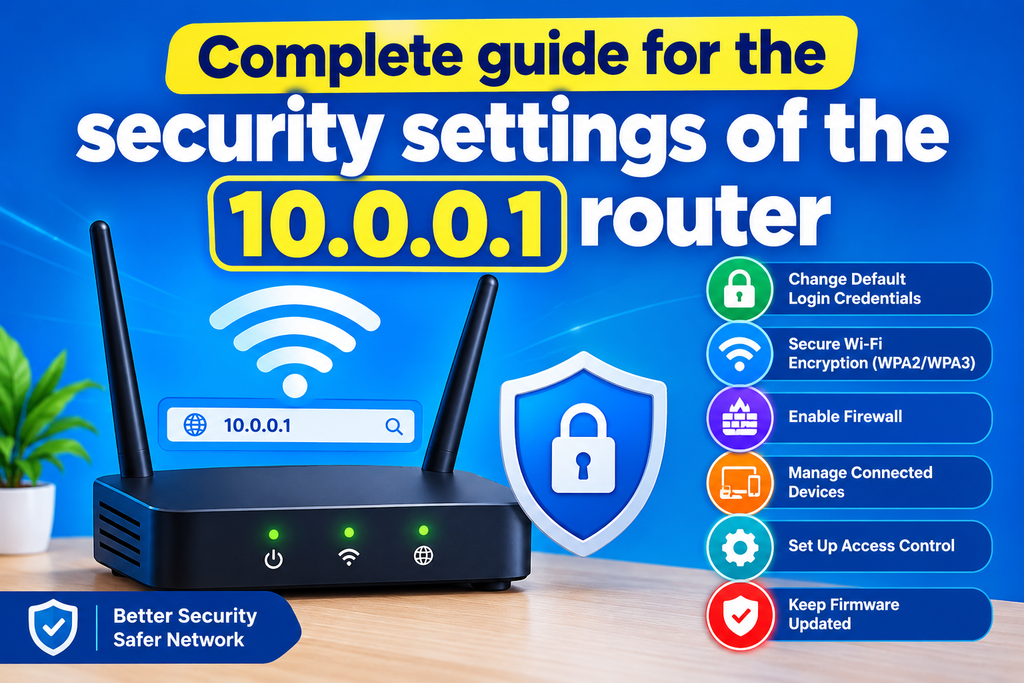
Complete guide for the security settings of the 10.0 0.1 router
You can secure your router by performing the following security setting steps:
Step 1: WPA3 Encryption
Always use WPA3 or WPA2 encryption to secure your router and scramble your Wi-Fi data. WPA and WEP are old encryption methods; never use them because they are now insecure.
Step 2: Change the admin password
Now, secure your admin password because the default password is known by almost everyone. If any third-person access to your admin, then they can easily control your admin panel.
Tip: Your admin password must be different from the Wi-Fi password.
Step 3: Enable the Firewall
Make sure that you have enabled the pre-built firewall. It must work without your configuration because it blocks dangerous traffic.
Step 4: Disable WPS
Disable the Wi-Fi Protected Setup (WPS) if you are not using it because it provides convenient setup and connection of other devices with admin.
Step 5: Disable remote management
Keep remote management disabled because it exposes your router to other networks. It also has the benefit that you can easily access your router from outside but still keep it off. Hold the reset button for 10-15 seconds and restart it. Now, enter the default credentials and login seccessfully.
How can I Find my router’s addresses?
If your router is not opening using the 10.0.0.1 IP address, then it’s possible that your router has a different IP address. You can find your router’s IP address by following this method:
For Android
Open your Android device’s Settings and tap WiFi. Select your connected network and look for Router or Gateway in the network details. The displayed address is your router’s IP address.
For iPhone
Open Settings on your iPhone and tap Wi-Fi. Check your connected network and tap the info (ⓘ) button next to it. Find the Router field and copy the IP address displayed there.
For Mac
Open System Settings on your Mac and select your network. Click the Details button, then find the Router field to view and copy your router’s IP address.
For Windows
Press Windows + R on your computer, type cmd, and press Enter. In Command Prompt, type ipconfig and press Enter. Find the Default Gateway entry to view your router’s IP address.
What is the difference between 10.0.0.1 and 10.0.0.0.1 Admin Router?
| Address | Valid | Works |
| 10.0.0.1 | Yes | Opens your router login page |
| 10.0.0.0.1 | No | Shows a browser error every time |
Most of the people use the 10.0.0.0.1 instead of 10.0.0.1 but it’s totally different. IP address works properly with four groups with dot, and 10.0.0.0.1 has five groups and router cannot work.
10.0.0.1 and Piso Wifi system
If 10.0.0.1 is the central device and a Piso WiFi system business, then manage the system as:
User management
Check the connected users and analyze their remaining time and total sessions. You can also disconnect more users and keep only the required users.
Voucher management
Never use coins, but generate prepaid voucher codes. Track the remaining and active vouchers.
Pause time
This is an amazing feature because users can pause their sessions and start working without losing their data. Enable the pause timer and enhance your satisfaction period.
Rate configuration
Different time periods have different rates. Select your pricing tiers according to periods like 10-15 minutes, hours, days, or months.
What is the Piso WiFi?
If you are living in an area where people don’t have money for monthly internet deals, you can enjoy Piso wifi. You can connect your devices like Android, iPhone, Mac, and Windows to this internet connection for a short time period, like a few minutes or hours. This wifi system is usually used in malls, small shops, restaurants, and offices. You can also use it at home when wifi is connected to a limited number of devices. Its interesting point is mostly users don’t need to enter a password.
Features of the Piso WiFi system
This exciting system has advanced features that are as:
Pay-per-use internet
An amazing feature of this system is that users have to pay as they use the internet. If you require an internet connection for just 3-4 hours, then connect to the piso wifi and only pay for this short time.
Multiple payment systems
You can use a wallet or digital payment system to easily access the piso wifi connection without facing any restrictions.
User-friendly interface
It has a friendly interface through which you can easily log in and connect your device to the network. If you are facing any issue, then contact support or simply call the help center to quickly resolve your issue.
Simple plug-and-play
Simply connect your device to this wifi system and complete your task. You can also pause the internet and then start working from where you left off.
Popular Router brands and their Defaults
Some brands use routers with different defaults, such as:
| Brand | Username | Password |
| TP-Link | Admin | Admin |
| D-Link | Admin | password |
| Huawei | Admin | Admin |
| ASUS | Admin | Admin |
| Cisco | cisco | cisco |
| Netgear | Admin | password |
| LPB Piso WiFi | Admin | Admin |
The most reliable source is to check the router cable.
Manufacturers use 10.0.0.1 as the admin
As the 10.0.0.1 IP address is easy to remember, that is why many manufacturers use it. It is mostly used on home routers but is traditionally suitable for business networks and accessible for multiple devices at the same time. Different router producers using this IP address are given as:
Other organizations using the 10.0.0.1 IP are:
What are the popular Router IP addresses?
If you are facing issues with the 10.0.0.1 IP address, then use the 192.168.1.1
Other Brands using the 10.0.0.1 IP address router
Tips for your router security
What are the advantages of the 10.0.0.1 Admin?
This IP address has multiple advantages; some are given as:
Troubleshooting common problems related to the 10.0.0.1
Roter admin
If you are using this router IP address and facing any issues, then relax because this section is here to provide solutions to all problems.
Problem 1: 10.0.0.1 is not opening
If your router is not opening, make sure that you have entered the IP address in the address bar and not in the search bar. Use a private browser window and clear all the caches. If the router is still not working, use other IP addresses like 192.168.0.1 or 192.168.1.1
Problem 2: The page is not working
If you have opened the router page and it is still loading after a few minutes, then try a private browser window. If still not loading, then unplug the router for a few minutes and restart it.
Problem 3: Facing login issues
If you have opened the login page and the password is not working, then relax. First of all, make sure that you are entering the admin password, not the wifi password. Keep Caps Lock off and check the router manual or cable.
Problem 4: Connection not private
If you have opened the browser and it says “connection is private,” then be easy because it’s normal for a local user. Make sure that you have entered the right IP address:10.0.0.1 and connected to your own router because it has a self-signed certificate that browsers could not identify. Now, click the Proceed button and resolve your issue.
Problem 5: Forget your admin password
If you have forgotten the admin password, then complete the factory reset of the router. It will erase all the custom configuration, like the Wi-Fi password.
Common misspelling of 10.0.0.1 Router
10.010.0.010 0.010.0 0.110.0.0.0.110.0.0.0110.0.0.1.admin10000110.0.0.i10.o.o.110.o.0.110.0.o.1
FAQs
Frequently Asked Questions
Is it secure to connect our devices to the Piso WiFi system?
Piso WiFi security depends on the network configuration and operator. Use trusted networks, avoid sharing sensitive information over unsecured connections, and keep your device’s security settings updated.
Can you access 10.0.0.1 on Android phones?
Yes, you can access 10.0.0.1 on an Android phone. Connect to the relevant WiFi network, open a web browser, and enter http://10.0.0.1 in the address bar.
What is the difference between the WiFi password and the admin password?
The WiFi password lets you connect to a wireless network, while the admin password allows authorized users to access and manage the router’s settings.
Is it necessary to have an internet connection to access the 10.0.0.1 IP address?
No, an active internet connection is not required. Your device needs to be connected to the router’s local network to access its admin page at 10.0.0.1.
Why should I change my WiFi password regularly?
Changing your WiFi password periodically can help protect your network from unauthorized access. Review connected devices regularly and choose a strong, unique password.
Can a user change their router settings from outside?
Normally, users need access to the router’s local network and valid admin credentials to change its settings. Remote management may be available on some routers if enabled.
Can users access the Piso WiFi connection for free?
Piso WiFi operators commonly use a paid, pay-per-use system. Whether free access is available depends on the operator’s pricing and network settings.
For what purpose is 10.0.0.1 used?
10.0.0.1 is a private IP address commonly used as a router’s local gateway or admin address. Depending on the router configuration, it can provide access to network settings and management tools.
Conclusion
In short, if you want to manage a wifi, have complete control of the network, or run a small business, then use the 10.0.0.1 IP address to access complete router control. You can change the wifi name, password, and block unwanted devices. Always use an IP address with three zeros and four groups, five groups or four-zero IP address is invalid. Secure your wifi and admin password, and install firmware updates regularly.